
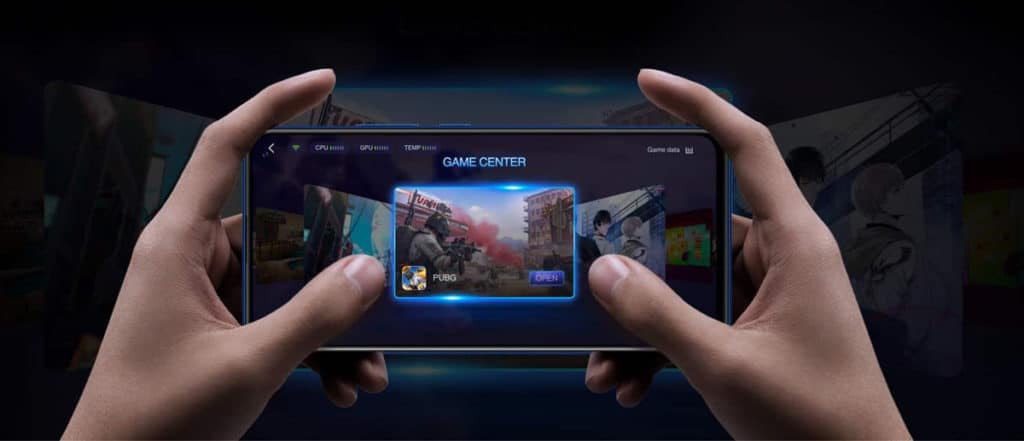
vivo has become the best gaming smartphone by being a prime choice for gamers due to its proficient processor, lag-free experience, and temperature cooling features.
The phone has come up with the latest fun touch OS, which has many things to provide, primarily for gaming mode, which is way different from the traditional Android OS app drawer.
The hardware management tools complement the high-performance RAM, which makes the gaming experience much smoother.
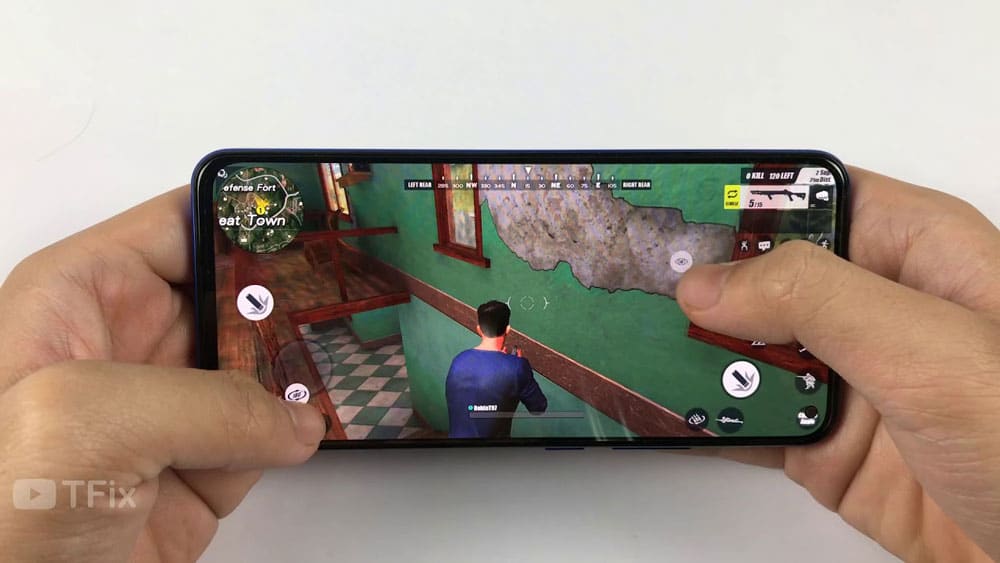
The Funtouch OS also introduces a quick controller center, accessible swipe options for sound levels, brightness control, recent apps, and toggles for Wi-Fi, Mobile Data, Flashlight, and more.
Apart from this, it also has other strengths like high customizability with the I theme application. The users can clean the resident memory easily to optimize the space and performance of their phones. In this article, we will be covering everything you need to know about vivo ultra game mode in Funtouch OS.
What is vivo Ultra Game Mode?
This mode exposes the comprehensive features by bringing shortcut functions in the phone like an inward sliding option. It enables background call if the user is in the middle of the game will supporting hands-free.
You can set your priority list of ‘allow some calls’, and the list will reject other numbers automatically when the user is in the game. This mode also hides top alerts that floats on the screen to avoid any disturbance during gameplay.
How to Enable Ultra Game Mode
The first step is to go in your settings option and turn on the game mode by clicking on the toggle next to Game mode. Click on “add” at the bottom of the page now. You can select the games from the list, which can be enabled by game mode.
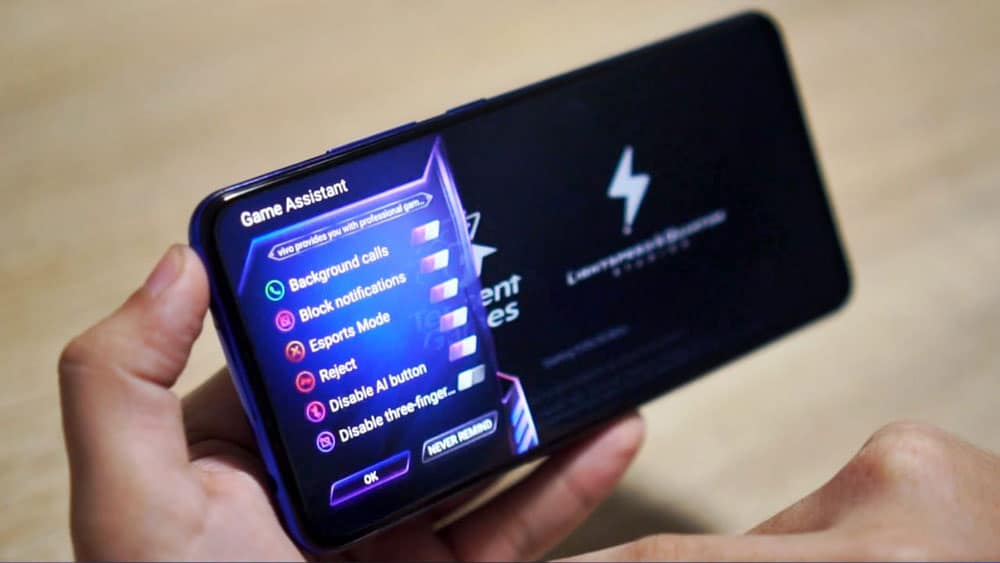
For enabling the specific features, you need to click on the application in the ultra game mode list and select the features you want to allow specifically. In the case of game mode keyboard, go to Game Assistant, turn on both options in the window.
Conclusion
The above were benefits and steps of enabling vivo ultra game mode, which will provide a much better gaming experience for highcore gamers without any disturbance. If you are facing these disturbances in your daily gaming experience, it’s time to switch for the latest features.








1 thought on “How to Improve Gaming Performance on vivo Phone”
Please game mode on